
Since its introduction in 1996, the Universal Serial Bus (USB) has become the world’s most successful electronic device interface standard. It revolutionized the way we connect computers to peripherals, enabling the convenience of “plug and play.” However, with technological advancements and device miniaturization, the USB interface itself has evolved into a dazzling family.
This article will delve into the various USB connector types, including their physical characteristics, protocol versions, performance differences, and typical application scenarios, helping you thoroughly understand this complex “cable” world.
I. Understanding Key Concepts: Connectors, Protocols, and Speed
Before delving into specific types, it’s essential to distinguish three often-confused core concepts:
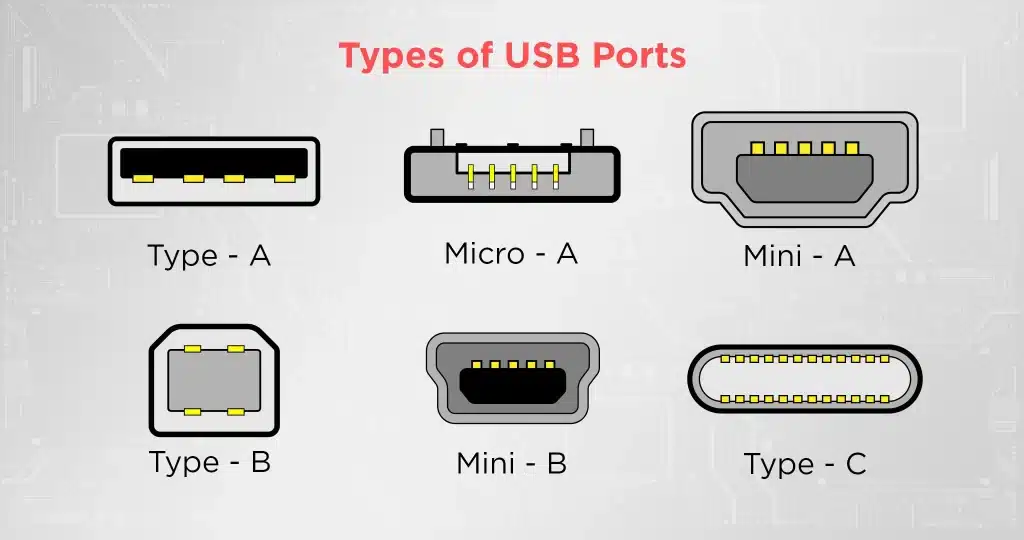
- Connector Type: Refers to the physical shape of the interface. For example, the terms “square” and “flat,” which determine whether a plug can be inserted into the port. The main types are standard (A, B), miniaturized (Mini, Micro), and the latest Type-C.
- Protocol Version: This refers to the USB technical standard, determining data transfer speed and functionality. Examples include USB 1.0, 2.0, 3.2, and USB4. Higher versions generally offer faster speeds and more powerful features.
- Speed Rating: This is the specific performance indicator corresponding to the protocol version. For example, USB 2.0 has 480 Mbps, while USB 3.2 Gen 2×2 has 20 Gbps.
Important Relationship: A physical connector (such as Type-A) can support different protocol versions (such as USB 2.0 or USB 3.2). For example, a blue USB Type-A port usually indicates that it supports high-speed protocols such as USB 3.0 and above. Therefore, identifying the interface color and the number of internal pins is also key to judging its performance.
II. Detailed Explanation of Mainstream USB Connector Types
We will explain the main connectors in detail according to their development history and form factors.
1. Type-A: The King of the Desktop World
Type-A is the most classic and widely recognized USB interface, its flat, rectangular shape practically synonymous with USB.
- Physical Characteristics: The rectangular design is asymmetrical, meaning it can only be inserted in one orientation. While this “foolproof” design is well-intentioned, it also leads to the classic “never plugs it in correctly the first time” user experience. Internally, it typically has 4 (USB 2.0) or 9 (USB 3.0 and above) metal contacts.
- Protocol Support: From USB 1.0 to the latest USB4, the Type-A interface maintains remarkable compatibility in terms of form factor. However, to achieve high-speed performance, the host, cable, and device must support higher protocols.
- Color Coding:
- Black or White: Typically represents USB 2.0, with a speed of 480 Mbps.
- Blue: Represents USB 3.0/USB 3.1 Gen 1/USB 3.2 Gen 1, with a speed of 5 Gbps.
- Blue-green/Green: May indicate USB 3.1 Gen 2, with speeds of 10 Gbps.
- Red/Yellow: Usually indicates that the port supports “high-current charging,” allowing charging of devices even when the computer is off.
- Main Applications: Most desktop peripherals, including computer hosts, laptops, chargers, USB flash drives, keyboards, mice, and printers.
2. Type-B: Dedicated Connector for Printers
Type-B interfaces are typically used to connect larger peripherals, such as printers, scanners, and some external hard drive enclosures. Their design aims to clearly define the roles of host (Port A) and device (Port B), avoiding redundant connections.
- Physical Characteristics: Approximately square with slightly beveled edges; larger than Type-A.
- Variations: With device miniaturization, standard Type-B is less common in new devices. However, with the advent of USB 3.0, the USB 3.0 Standard-B interface was introduced. It added a protruding section to the existing Type-B interface to accommodate more pins for high-speed transmission, while remaining backward compatible with USB 2.0 Type-B cables (although the speed would drop to USB 2.0).
3. Mini-USB: A Pioneer of Portability
Mini-USB was the first truly miniaturized USB interface designed for portable devices, and it was very popular from the mid to late 2000s.
- Physical Characteristics: Smaller than Standard-B, trapezoidal in shape, with hooks on both sides for securing it.
- Types: There are two main types: Mini-A and Mini-B, but Mini-A is extremely rare. We usually see Mini-B, an interface with 5 pins.
- Current Status: Officially recognized as an “obsolete” interface. Due to its poor mechanical strength and short insertion/removal life (approximately 5000 times), it was ultimately replaced by the superior Micro-USB.
- Previous Applications: Early digital cameras, MP3 players, external hard drives, and older mobile phones (such as some Motorola and Blackberry models).
4. Micro-USB: The Decade-Long Standard of the Android Empire
Micro-USB is an improved version of Mini-USB, thinner, smaller, and with higher mechanical strength (approximately 10,000 insertion/removal cycles). With the support of the European Union and the International Telecommunication Union (ITU), it once became the de facto universal charging standard for smartphones and other mobile devices.
- Physical Characteristics: Very thin, with tiny hooks on both sides of the plug to ensure a secure connection.
- Types:
- Micro-B: This is the most common form factor, dominating almost all non-Apple (Android) phones and various portable devices in the 2010s, such as power banks, Bluetooth headsets, and smartwatches.
- Micro-AB: A special type of female connector that accepts both Micro-A and Micro-B plugs; extremely rare.
- USB 3.0 Micro-B: Designed for external hard drives. It adds an extra, oddly shaped plug next to the standard Micro-B connector, but provides the high-speed transfer capabilities of USB 3.0. It’s backward compatible, meaning it can be plugged into a USB 2.0 Micro-B cable, but the speed is limited.
- Current Status: With the widespread adoption of USB-C, Micro-USB is gradually fading from the mainstream market, but it’s still commonly found in a large number of existing devices (such as inexpensive mobile phones, low-end headphones, and various small home appliances).
5. USB Type-C: The Unified Interface of the Future
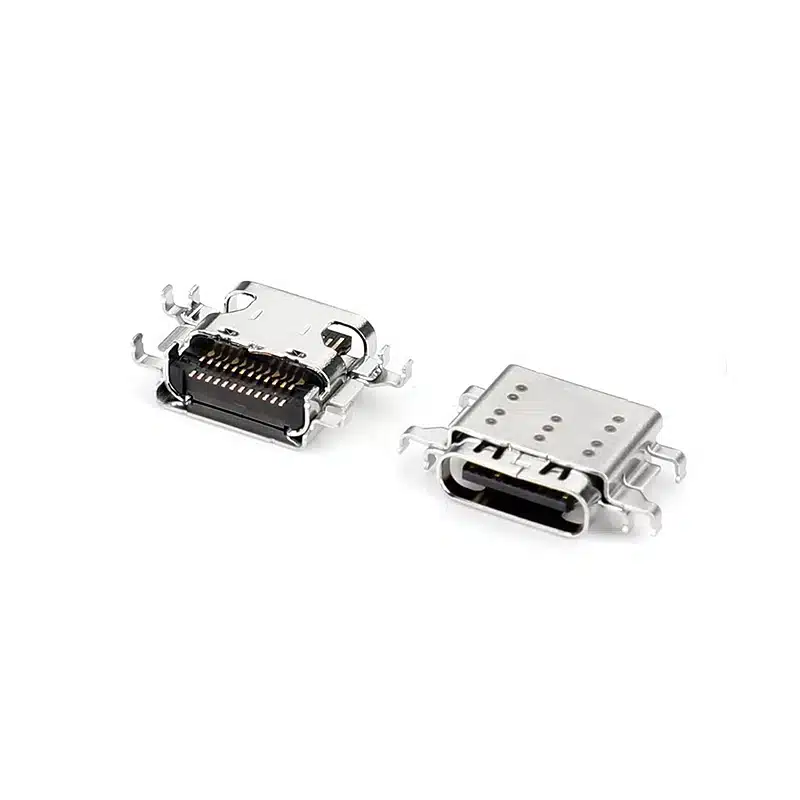
USB Type-C (USB-C for short) is a revolutionary achievement of the USB standard, designed to be the single, ultimate physical interface, unifying all devices.
- Revolutionary Physical Features:
- Fully Reversible: One of the greatest features. The plug is symmetrical, eliminating the “front” and “back” distinction, enabling “blind insertion.”
- Compact and Slim: Similar in size to Micro-USB, it’s ideal for ultra-thin laptops, tablets, and mobile phones.
- Revolutionary Functionality (Unparalleled Power): USB-C is merely a physical form, but it supports an incredibly rich array of protocols and capabilities thanks to its 24 pins.
- High-Speed Data Transfer: Natively supports USB 3.2 Gen 2 (10 Gbps), USB 3.2 Gen 2×2 (20 Gbps), and can support the latest USB4 standard (up to 40 Gbps).
- Powerful Power Delivery: Supports the USB Power Delivery (USB-PD) protocol, providing up to 240W of power (latest standard), sufficient to drive high-performance gaming laptops, monitors, and other large devices. It is also compatible with fast charging protocols such as Qualcomm Quick Charge.
- Alt Mode: This is USB-C’s killer feature. Through Alt Mode, USB-C cables can transmit non-USB data signals, including:
- DisplayPort Alt Mode: Directly outputs video signals, allowing connection to 4K, 8K, and even higher resolution displays.
- Thunderbolt 3/4: Intel-led ultra-high-speed interfaces. All devices supporting Thunderbolt 3/4 use a USB-C interface. Thunderbolt integrates PCIe data, DisplayPort video, and up to 100W power delivery, achieving speeds up to 40 Gbps, representing the pinnacle of performance.
- HDMI Alt Mode, MHL, etc.: Can also be used for video output.
- Application Scenarios: All modern and future devices, including flagship phones (the iPhone 15 series has fully transitioned to USB-C), laptops (MacBook, XPS, etc.), tablets, monitors, docking stations, solid-state drives (PSSDs), etc.
- Confusion and Challenges: The “versatility” of USB-C also brings complexity. A cheap USB-C cable may only support USB 2.0 speeds and slow charging, while a full-featured cable supports high-speed data and video transmission. Therefore, careful review of the specifications is essential when purchasing.
III. Protocol Evolution and Speed Comparison
After understanding the connector form factor, we must review the underlying protocol development, which directly determines the performance ceiling.
- USB 1.x (1996-1998): Low speed (1.5 Mbps) and full speed (12 Mbps), used for mice, keyboards, etc.
- USB 2.0 (2000): High speed (480 Mbps). Still the basic standard for many devices, inexpensive.
- USB 3.0 (2008): Later renamed USB 3.1 Gen 1, and then USB 3.2 Gen 1. Speed 5 Gbps. Internal contacts are usually blue.
- USB 3.1 (2013): Introduced USB 3.1 Gen 2 (later renamed USB 3.2 Gen 2), doubling the speed to 10 Gbps.
- USB 3.2 (2017): Naming became more complex. It introduced a dual-channel mode, resulting in:
- USB 3.2 Gen 1×2 = 10 Gbps (uncommon)
- USB 3.2 Gen 2×2 = 20 Gbps (requires Type-C interface)
- USB4 (2019): Based on the Intel Thunderbolt 3 protocol, requires a Type-C interface. There are two main versions:
- USB4 20 Gbps
- USB4 40 Gbps (peak performance)
- USB4 Version 2.0 (2022): Supports asymmetric speeds up to 80 Gbps and symmetric speeds up to 120 Gbps, paving the way for next-generation high-resolution displays and storage devices.
Important Note: Actual speed depends on the weakest link in the chain (host, cable, device). A USB 3.2 flash drive plugged into a computer’s USB 2.0 port will only run at USB 2.0 speeds.
IV. Special Purpose and Derivative Interfaces
Besides the mainstream types, there are some interfaces designed for specific needs.
- USB On-The-Go (USB OTG): This is not a physical interface, but a protocol. It allows mobile devices such as phones to act as “hosts” and directly read data from external devices such as USB flash drives and digital cameras. Implementing OTG functionality usually requires a special adapter cable (such as a Micro-USB to USB-A female, or USB-C to USB-A female).
- Lightning: Although not a USB standard, it must be mentioned. This is Apple’s proprietary interface designed for its iPhones, iPads, and other devices since 2012. It is small and reversible. Driven by regulations in regions such as the EU, Apple has also switched to USB-C in the new iPads and iPhone 15 series, and Lightning is gradually coming to an end.
V. How to Choose and Identify: A Practical Guide
Faced with many choices, here are some practical suggestions:
- Choosing for New Devices: Prioritize devices and cables with USB-C interfaces; this is the future trend.
- Check Cable Specifications: When purchasing a USB-C cable, pay attention to the protocol (e.g., USB 3.2 Gen 2), power (e.g., 60W, 100W), and whether it supports video transmission (e.g., 4K@60Hz) or Thunderbolt 4 as indicated on the packaging.
- Identify Older Devices:
- Square connector: Type-B (printers, speakers).
- Small trapezoidal connector: Mini-B (old cameras, MP3 players).
- Extremely flat connector with hooks on both sides: Micro-B (old Android phones, power banks).
- Flat rectangular connector: Type-A (computer).
- Color Coding: A blue USB-A port usually indicates higher speeds.
VI. Summary and Future Outlook
The history of USB connectors is a history of device miniaturization, functional integration, and optimized user experience. From the Type-A connector, which required repeated attempts to plug in correctly, to the ubiquitous USB-C, we are moving towards a simpler future where everything is connected by a single interface.
With its reversibility, high bandwidth, powerful power delivery, and virtually unlimited functional expandability (through alternative modes), USB-C has become the undisputed successor.
The future challenge will no longer be the physical form of the interface, but rather how to help consumers clearly understand the performance differences between various USB-C cables and ports.
With the increasing popularity of USB4 and Thunderbolt 4, and the upcoming USB4 v2.0, the potential of USB-C will be further enhanced.